Point Label Rules
The Point Label Rules control the descriptive text labels placed on survey strings — the annotation that identifies what each string represents (e.g. CONCRETE DRIVEWAY, TIMBER FENCE, SMH). This is separate from the elevation or code labels controlled by PointStyleConfig and LabelStyleConfig.
Rules are per-configuration and stored at:
%APPDATA%\SpatialViz\PointLabelRules\<ConfigName>_PointLabelRules.json
Using the Editor
Open the editor from R3MANAGECONFIGS → Point Label Rules... button in the Settings section.
Layout
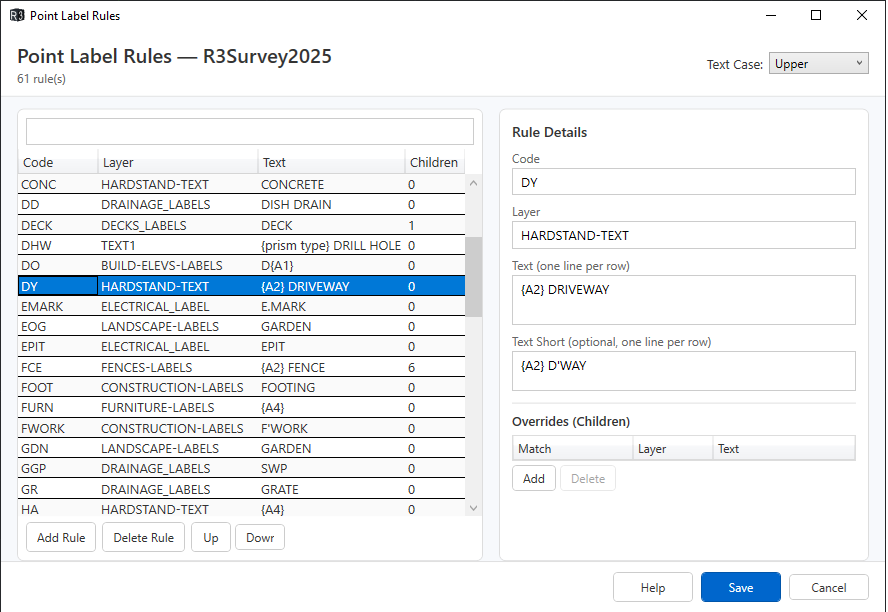
The editor has two resizable panels separated by a draggable splitter:
- Left panel — the rules list. Shows all rules with Code, Layer, Text preview, and child override count. Use the search box to filter by code, layer, or text. Use Add Rule, Delete Rule, and Up/Down to manage and reorder rules.
- Right panel — detail editor for the selected rule.
Editing a Rule
Select a rule in the left panel to edit it on the right:
| Field | Description |
|---|---|
| Code | The survey point code this rule matches (e.g. FCE, BLD, MH) |
| Layer | The CAD layer the label is placed on |
| Text | The label text — one line per row. Each row becomes a separate line in the drawing. Use {A1}–{A8} for attribute tokens and {H:0.00} for elevation. |
| Text Short | Optional abbreviated version used when short labels are requested. If blank, the full Text is used. |
Overrides (Children)
Children let you change the label or layer based on attribute values. For example, a KERB rule might have children that change the label when A4=Vehicle Xing or A2=Pram Xing.
Select a child in the Overrides grid to edit it:
| Field | Description |
|---|---|
| Match | Conditions that must be true, one per line in Key=Value format (e.g. A2=Top). All conditions must match. |
| Override Layer | Leave blank to inherit the parent's layer. |
| Override Text | Leave blank to inherit the parent's text. |
| Override Text Short | Leave blank to inherit the parent's short text. |
Children are evaluated in order — the first match wins. Use Add and Delete to manage children.
Text Case
The Text Case dropdown in the header applies globally to all labels:
- None — text is used as written
- Upper — all labels converted to uppercase
- Lower — all labels converted to lowercase
Saving
Click Save to write changes back to the configuration file. Click Cancel to discard changes.
Structure
{
  "ConfigName": "R3Survey2025",
  "TextCase": "Upper",
  "Rules": [
    {
      "Code": "CODENAME",
      "Match": {},
      "Layer": "LAYER-LABELS",
      "Text": ["Label line 1", "Label line 2"],
      "TextShort": ["Short label"],
      "Children": []
    }
  ]
}
Top-level fields
| Field | Description |
|---|---|
ConfigName |
Must match the configuration name |
TextCase |
"Upper" (all caps), "Lower", or "None" (as written) |
Rules |
Array of label rules, one per survey code |
Rule fields
| Field | Description |
|---|---|
Code |
Survey code this rule applies to |
Match |
Attribute conditions that must be true (empty {} = always match) |
Layer |
CAD layer for the label entity |
Text |
Array of label lines (long form) |
TextShort |
Array of label lines (short form — used where space is limited) |
Children |
Array of override rules evaluated after the base rule |
Tokens
Use {TOKEN} placeholders in Text and TextShort values:
| Token | Value |
|---|---|
{A1}–{A8} |
Attribute values |
{H} or {H:0.00} |
Elevation |
How rules are resolved
- Find the base rule matching the survey code.
- Walk the
Childrenarray — the first child whoseMatchconditions are all satisfied is applied. - If a matching child is found, its
Layer,Text, andTextShortoverride the base rule's values (any field not present in the child is inherited from the base). - Children can themselves have children — resolution continues depth-first until no further match is found.
- Token placeholders are then expanded.
TextCaseis applied last.
Examples (from R3Survey2025 configuration)
Simple code label
{
  "Code": "MH",
  "Match": {},
  "Layer": "SEWER-TEXT",
  "Text": ["SMH"],
  "Children": []
}
All MH points get the label SMH on the SEWER-TEXT layer.
Label driven by attribute
{
  "Code": "DY",
  "Match": {},
  "Layer": "HARDSTAND-TEXT",
  "Text": ["{A2} DRIVEWAY"],
  "TextShort": ["{A2} D'WAY"],
  "Children": []
}
A DY point with A2 = Concrete produces the label CONCRETE DRIVEWAY (after TextCase = Upper is applied).
Conditional label via children
{
  "Code": "KERB",
  "Match": {},
  "Layer": "RD-KB-LABELS",
  "Text": ["{A5} KERB"],
  "Children": [
    { "Match": { "A4": "Vehicle Xing" }, "Text": ["VEHICLE XING"] },
    { "Match": { "A2": "Pram Xing" }, "Text": ["KERB RAMP"], "TextShort": ["RAMP"] }
  ]
}
- If
A4 = Vehicle Xing→ label isVEHICLE XING - If
A2 = Pram Xing→ label isKERB RAMP(orRAMPin short form) - Otherwise → label is
{A5} KERB(e.g.CONCRETE KERB)
Conditional layer change via children
{
  "Code": "BLD",
  "Match": {},
  "Layer": "BUILDINGS-LABELS",
  "Text": ["{A6} {A2}"],
  "Children": [
    { "Match": { "A5": "Lower Ground" }, "Layer": "BUILDINGS_LG-LABELS" },
    { "Match": { "A5": "Ground", "A2": "House" }, "Layer": "BUILDINGS_G-LABELS", "Text": ["{A6} RESIDENCE"] },
    { "Match": { "A5": "Ground" }, "Layer": "BUILDINGS_G-LABELS" },
    { "Match": { "A5": "L1" }, "Layer": "BUILDINGS_L1-LABELS" }
  ]
}
The text is inherited from the base rule; only the layer changes per floor level. The Ground/House child also overrides the text to {A6} RESIDENCE.
Multi-line label
{
  "Code": "BANK",
  "Match": {},
  "Layer": "TOPOGRAPHY-TEXT",
  "Children": [
    { "Match": { "A2": "Bottom" }, "Text": ["BOT", "OF", "BANK"] },
    { "Match": { "A2": "Top" }, "Text": ["TOP", "OF", "BANK"] }
  ]
}
Each element of the Text array is a separate line. The base rule has no Text (no label for unrecognised A2 values).
Pipe label with diameter and material
{
  "Code": "PI",
  "Match": {},
  "Layer": "DRAINAGE_LABELS",
  "Text": ["{A3}%%c PIPE"],
  "Children": [
    { "Match": { "A4": "PVC" }, "Text": ["{A3}%%c PVC PIPE"] },
    { "Match": { "A4": "Concrete" }, "Text": ["{A3}%%c RCP"] }
  ]
}
%%c is the AutoCAD diameter symbol (Ø). A PI point with A3 = 375 and A4 = Concrete produces 375Ø RCP.
Notes
- Matching is case-insensitive
- A code with no matching rule produces no string label
- If
TextShortis absent, the longTextis used in all contexts Match: {}(empty) always matches — used as the base rule fallback