Configuration (R3MANAGECONFIGS)
Command: R3MANAGECONFIGS
A configuration is the set of files that tells R3STRING how to process and draw your survey data. Each configuration has a name and links together:
| File | Purpose |
|---|---|
| CodeList | Defines valid codes and their attributes |
| CodeStringRules | Controls how points are grouped into strings |
| PointStyleConfig | Controls how individual points are drawn |
| StringStyleConfig | Controls layers and linetypes for strings |
| PointLabelRules | Controls point label content and format |
| ContourablePointsConfig | Defines which codes/attributes are used for contouring |
| BreaklineLayersConfig | Defines which layers are treated as breaklines |
All configuration files are stored in your Windows AppData folder:
%APPDATA%\SpatialViz\
Opening the configuration manager
Type R3MANAGECONFIGS. The configuration manager form opens with two main areas:
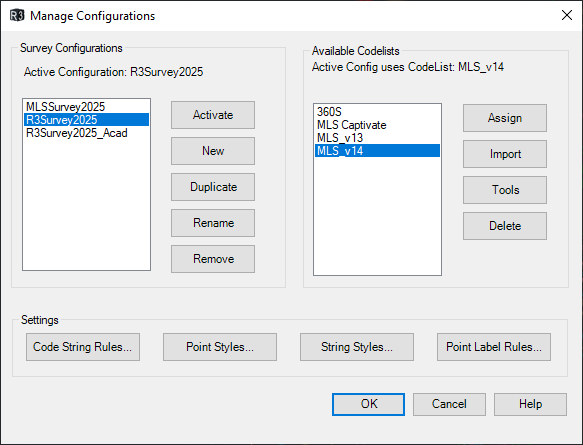 - Configurations — your list of named configurations
- Code Lists — the code lists available to assign to configurations
- Configurations — your list of named configurations
- Code Lists — the code lists available to assign to configurations
Managing configurations
Creating a configuration
Click Create. Enter a name. The new configuration appears in the list with no CodeList assigned yet.
Setting the active configuration
Select a configuration and click Set Active. The active configuration is the one used by R3STRING. The current active name is shown at the top of the form.
Copying a configuration
Select a configuration and click Copy. This duplicates the configuration with a new name, including all its linked file paths — useful for making a variation of an existing setup.
Renaming or deleting
Use Rename and Delete from the configurations list.
Managing code lists
Importing a code list
Click Import and choose a source:
- Import from XML — import a CodeList from a Hexagon/Leica XML file (HeXML format)
- Import from survey file — import codes and attributes derived from a survey data file (CSV, XML, PTA)
The imported CodeList is saved as a JSON file in %APPDATA%\SpatialViz\CodeLists\ and appears in the Available Code Lists panel.
Assigning a code list to a configuration
Select the configuration on the left, select the CodeList on the right, and click Assign. The assigned CodeList name is shown under the configuration.
Editing configuration files
With a configuration selected, use the Edit buttons to open each config file:
| Button | File opened |
|---|---|
| Edit Code String Rules | …\CodeStringRules\<name>_CodeStringRules.txt |
| Edit Point Styles | …\PointStyles\<name>_PointStyleConfig.txt |
| Edit String Styles | …\StringStyles\<name>_StringStyleConfig.txt |
| Edit Contourable Points | …\ContourablePoints\<name>_ContourablePointsConfig.txt |
| Edit Breakline Layers | …\BreaklineLayers\<name>_BreaklineLayersConfig.txt |
These are plain text files — they open in your default text editor (usually Notepad). See each file's documentation for its format:
Tools
With a code list selected, the Tools menu gives you:
- Copy all codes to clipboard — useful for pasting into a rules file
- Open in Notepad — quick view of the code list in raw text
- Open JSON — open the full code list JSON file in your default editor
Configuration file locations
All files follow a predictable naming pattern based on the configuration name:
%APPDATA%\SpatialViz\
├── Configs.json                              ← list of all configs and active name
├── CodeLists\
│   └── MyCodeList.json
├── CodeStringRules\
│   └── MyConfig_CodeStringRules.txt
├── PointStyles\
│   └── MyConfig_PointStyleConfig.txt
├── StringStyles\
│   └── MyConfig_StringStyleConfig.txt
├── PointLabelRules\
│   └── MyConfig_PointLabelRules.json
├── ContourablePoints\
│   └── MyConfig_ContourablePointsConfig.txt
└── BreaklineLayers\
    └── MyConfig_BreaklineLayersConfig.txt
You can back up or share a configuration by copying the Configs.json and all associated files to another machine.
R3BUILDSURFACE — Build Civil 3D TIN surface
Command: R3BUILDSURFACE (Civil 3D only)
Builds or updates a Civil 3D TIN surface from the active configuration's ContourablePoints and BreaklineLayers settings. Run this after stringing to generate a surface from your survey data.
What it does
- Reads the active configuration's ContourablePoints and BreaklineLayers files
- Identifies all CogoPoints that match the contourable rules and adds them to a point group named
Contourable_{configName} - Collects line segments from all layers listed in the BreaklineLayers config where both endpoints coincide with contourable points — these become surface breaklines
- Creates or updates a TIN surface named
Surface_{configName}, adds the point group and breaklines, and rebuilds
Re-running the command updates the existing surface — it does not create a duplicate.
Usage
- Set the active configuration with
R3MANAGECONFIGS - Ensure CogoPoints are in the drawing (from
R3STRINGor imported) - Type
R3BUILDSURFACE
No prompts — the command runs to completion and reports Surface build complete.
Civil 3D only
R3BUILDSURFACE requires Civil 3D. It will not run in AutoCAD.