Swing (R3SWING)
Command: R3SWING
Opens the Swing form for managing the bearing swing in the current drawing. A swing is an angular offset that is automatically applied to all bearings entered in R3TRAV, allowing you to work in a local or rotated bearing system without manually converting every bearing.
See Swings for a conceptual explanation of what a swing is and when to use one.
Opening the form
Type R3SWING, choose Swing from the R3Survey menu, or click the Swing button on the ribbon.
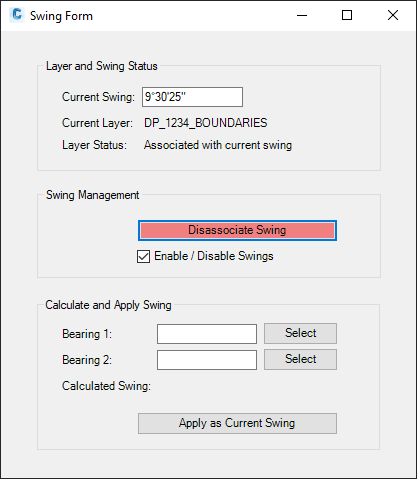
Form sections
Layer and Swing Status
Displays the current state of the drawing:
| Field | Description |
|---|---|
| Current Swing | The active swing value (e.g. 9° 07' 10") |
| Current Layer | The active AutoCAD layer |
| Layer Status | Whether the current swing is associated with the active layer |
If a swing is associated with a survey plan layer (for example DP31357_CONNECTIONS), switching to another layer in the same survey plan automatically applies the stored swing for that plan.
Swing Association
Controls whether the active swing is stored against the current layer. The association button changes colour to indicate its state:
| Button colour | Meaning |
|---|---|
| Blue — Associate Swing | Click to associate the current swing with the active survey plan layer(s) |
| Red — Disassociate Swing | Click to remove the swing association from the active survey plan layer(s) |
| Orange — Update Association | Click to replace the swing already stored against the layer with the current swing value |
If the layers were created using R3PL, the association applies to all layers in that survey plan. Otherwise it applies to the current layer only.
Enable / Disable swings
A checkbox controls whether the active swing is applied:
- Checked — swings are applied to bearing entry and display
- Unchecked — the swing value is preserved but not applied
When disabled, R3TRAV does not adjust entered bearings, and R3PROPERTIES shows WCS bearings without swing correction. This is equivalent to the R3TOGGLESWINGS command.
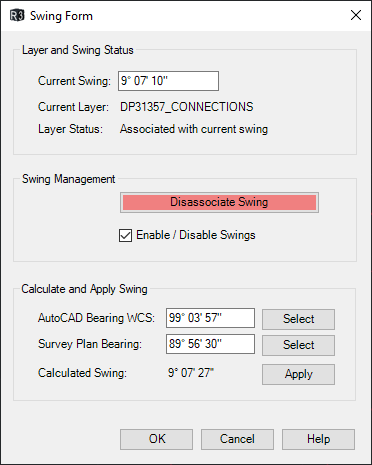
Calculate and Apply Swing
Calculates a swing from two known bearings:
| Field | Description |
|---|---|
| AutoCAD Bearing (WCS) | The bearing measured from drawing geometry. Use Select to pick a line or segment |
| Survey Plan Bearing | The bearing as shown on the survey plan (entered manually) |
| Calculated Swing | Automatically calculated as: WCS bearing − Survey Plan bearing |
| Apply | Sets the calculated swing as the current swing |
Angle display and input format
The display format for swing values is controlled by the Angle Display Format in R3UNITS:
| Format | Example |
|---|---|
| Decimal | 9.0710 |
| Compact | 9°07'10" |
| Spaced | 9° 07' 10" |
Entering swing values
Regardless of the display format selected, all manual input in Swing form text boxes must be in decimal DMS format.
Enter 9.0710, not 9°07'10". The value is converted and displayed in the selected format after entry.
Swing persistence
The active swing is stored in the drawing's extended data (XData) and persists between sessions. When you open a drawing, its stored swing is loaded automatically.
Command-line access
The following commands provide direct command-line access to swing functions without opening the Swing form:
| Command | Function |
|---|---|
R3SWING |
Opens the Swing form |
R3ENTERSWING |
Enter a swing value directly at the command line |
R3TOGGLESWINGS |
Toggle swings enabled/disabled |
R3ASSOCIATESWING |
Associate the current swing with the active layer |
R3DISASSOCIATESWING |
Remove the swing association from the active layer |
R3LISTSWINGS |
List all stored swing values and their layer associations |
R3ENTERSWING
Prompts for a swing value at the command line and sets it as the active swing. Useful when you already know the swing value and don't need to open the form.
R3TOGGLESWINGS
Toggles swings on or off without opening the form. Equivalent to checking/unchecking the Enable Swings checkbox in R3SWING.
R3ASSOCIATESWING
Associates the current swing value with the active layer (or all layers in the active survey plan if layers were created with R3PL). Equivalent to clicking the blue Associate Swing button in R3SWING.
R3DISASSOCIATESWING
Removes the swing association from the active layer (or all layers in the active survey plan). Equivalent to clicking the red Disassociate Swing button in R3SWING.
R3LISTSWINGS
Lists all swing values currently stored in the drawing and which layers they are associated with. Output is written to the command line.
Notes
- When a swing is active,
R3TRAVdisplays a warning at startup - Swings only affect bearing input and display — entities already in the drawing are not changed
- If a swing is associated with a survey plan layer, changing to that layer automatically sets the swing